A page says your browser needs an urgent update. It looks convincing, right down to the logo. Then it asks you to press Windows + R, paste something and hit Enter.
That is the point to stop. An unexpected web page asking you to run a command is a warning sign of a fake browser update scam. Instead of updating your browser, you could be giving malware a way onto your computer.
In this guide, I’ll explain how the trick works, how to update safely and what to do if you have already followed the instructions.
Watch the Video Walkthrough
Prefer to follow along? Watch my walkthrough, then use the steps below as a checklist.
What Is a Fake Browser Update Scam?
This scam uses a familiar looking message to persuade you to install something harmful. The page might claim your browser is out of date, a video cannot play or a security check needs completing.
The version covered here is commonly called ClickFix. The supposed “fix” asks you to copy and run a command. You carry out the final step yourself, which can make the instructions feel more trustworthy than an unexpected download.
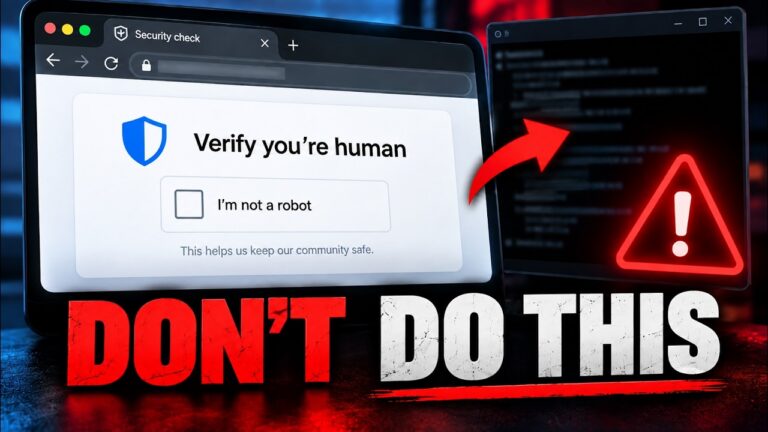
Similar instructions appear in fake human verification pages. My guide to spotting a fake CAPTCHA scam explains that variation in more detail.
How the Windows + R Trick Works
The wording changes, but the sequence is usually straightforward:
- You land on a page showing a fake update, error or verification message.
- You click a button that may copy a malicious command to your clipboard.
- The page tells you to press Windows + R, which opens the Windows Run box.
- It asks you to paste the clipboard contents and press Enter.
- Windows attempts to run the command, which may download and launch malware.
You do not need to understand the command to recognise the danger. An unexpected website is asking you to move outside the browser and execute instructions on your computer.
The Run box itself is a legitimate Windows feature. The problem is using it to run instructions supplied by an untrusted page.
What Could the Malware Steal?
The consequences depend on the malware delivered. Possible targets include saved passwords, browser data, personal files and cryptocurrency wallets. Some attacks can also give criminals remote access to the device.
Stolen login sessions are another concern. A session keeps you signed in after you enter your password. If an attacker steals usable session information, they may be able to access an account without going through the normal sign-in process.
That is why changing one password may not be enough after an infection. The computer, your important accounts and their active sessions all need attention.
Warning Signs to Look For
- Instructions to open a command window. A routine browser update or CAPTCHA does not need this.
- A copy and paste “fix”. Be especially cautious if the page hides what its button copies.
- Pressure to act immediately. Claims that you must update now to watch a video or continue browsing are common lures.
- Familiar branding in an unfamiliar place. Browser logos and polished designs can be copied.
A convincing logo does not make a page trustworthy. Focus on what it asks you to do.
How to Update Your Browser Safely
Close the suspicious tab. Open the browser’s own menu and find its About, Help or Update section. Follow the update and relaunch instructions shown there.
If you need to install a browser again, go directly to the developer’s official website. On Linux, updates may be managed through your distribution’s software updater or package manager, depending on how the browser was installed.
Avoid update downloads promoted by random pop-ups, advertisements or unexpected emails. After updating, you can also review my Brave privacy settings guide for practical ways to reduce tracking. Privacy settings help with everyday browsing, but they cannot make an unknown command safe.
What to Do If You Saw the Page but Did Not Run Anything
Seeing a fake update page does not, by itself, prove that your computer is infected. If you did not run the command, install a download or approve anything else, you may have stopped this attack before its main execution step.
- Close the suspicious tab. Do not return to test the instructions.
- Cancel the Run box if it is open. If you pasted a command but have not submitted it, close the box without running it.
- Replace the clipboard contents. Open a text editor, type something harmless such as “clipboard cleared”, select those words and copy them.
- Check any other actions you took. If you opened a downloaded file or installed software, treat that as a separate potential exposure.
There is no need to paste the unknown command somewhere to investigate it.
What to Do If You Pasted the Command and Pressed Enter
Treat the device as potentially compromised, even if nothing obvious appeared. Malware does not always display a window or warning.
Step 1: Disconnect the Affected Computer
Turn off Wi-Fi and unplug its Ethernet cable. If it is a work or school device, contact your IT or security team immediately and follow their instructions.
Step 2: Secure Your Accounts from Another Trusted Device
Use a separate computer or phone you trust. Start with your main email account, since it can often be used to reset passwords for other services.
- Change important passwords to strong, unique ones.
- Use the account’s security settings to sign out other sessions or revoke access where available.
- Review recovery details, recent sign-ins and, for email, unfamiliar forwarding rules.
- Enable multifactor authentication if it is not already on.
A password change does not always end every existing session. Look for a separate option to sign out other devices.
Step 3: Have the Computer Checked
Do not use the affected computer for email, shopping, banking or other sensitive tasks while you assess it. Run a full scan with trusted security software and consider Microsoft Defender Offline on supported Windows systems.
In Windows Security, open Virus & threat protection → Scan options to find the available scans. Save open work before starting an offline scan, because it restarts the computer. Microsoft explains the process in its Windows Security scanning guide.
Keep the machine isolated while seeking help. If security updates are needed, get guidance on obtaining them safely rather than reconnecting the computer and resuming normal use. A clean scan cannot prove that no information was stolen; a confirmed infection may require professional cleanup or a clean reinstall.
Can This Scam Affect Mac or Linux Users?
Yes. Windows + R is specific to Windows, but the same social engineering trick can tell Mac or Linux users to open Terminal instead.
There are legitimate reasons to use commands, particularly when following trusted technical documentation. The red flag here is an unexpected update or verification page pressuring you to execute something you have not verified.
Quick Questions
Does pressing Windows + R infect my computer?
No. That shortcut opens the Run box. In this scam, the dangerous step is submitting the attacker’s command. If you only opened the box, cancel it and close the suspicious page.
Can a fake update page copy something without me noticing?
A page may use a button click to place a command on the clipboard while presenting the button as an update or verification step. What is copied may differ from what the page shows you.
Will antivirus always stop the attack?
No security tool catches every threat. Keep protection enabled and up to date, but do not rely on it to make untrusted instructions safe.
Final Thoughts
You do not need to read code to avoid this trap. If an unexpected page tells you to open Run or Terminal, paste a command and press Enter, stop and close it.
Check updates through the browser itself. If you already ran the command, disconnect the affected device and secure your accounts from another trusted device.
For another layer of protection at home, my guide to setting up Cloudflare for Families on your home Wi-Fi covers filtering known malicious domains. It can help reduce exposure, but it will not catch every scam or clean an infected computer.
For more practical walkthroughs, follow Safe Web Life on YouTube.