Improving your online privacy can start to feel like another monthly bill. There’s a subscription for your passwords, another for your email and plenty more promising to protect everything else.
You can make useful changes without paying for all of that.
Bitwarden, SimpleLogin and DuckDuckGo each tackle a different everyday problem: reused passwords, sharing your main email address and leaving your searches with a service that builds a personal profile.
In this guide, I’ll show you how to get started with these three free privacy tools, explain their limits and help you decide what to change first.
The quick rule: Use a different password for each account, give websites an email alias where practical and choose a search engine that does not build a personal search profile. These are useful steps, but they do not make everything you do online anonymous.
Watch the Video Walkthrough
Prefer to follow along? Watch my video, then use the steps below as a checklist. I demonstrate the browser setup in Firefox.
The Three Tools at a Glance
| Tool | What it helps with | Free option |
|---|---|---|
| Bitwarden | Creating and storing unique passwords | Unlimited passwords across unlimited devices |
| SimpleLogin | Keeping your main email address out of website signups | 10 aliases and one forwarding mailbox |
| DuckDuckGo Search | Searching without a personal search profile | Free web search, with no account required |
You can use them together. There’s no need to move everything over in one sitting.
1. Bitwarden: Stop Reusing Passwords
If you use the same password for several accounts, a breach at one website can put the others at risk. Remembering a different strong password for every account is difficult, which is where a password manager helps.
Bitwarden stores your logins in an encrypted vault and can generate passwords for you. Its free personal plan includes unlimited passwords and access across unlimited devices, so you can use it on your computer and phone without paying for basic syncing.
It is also open source, which allows its code to be inspected. That openness is useful for scrutiny, although it is not a guarantee that software can never contain a security flaw.
Step 1: Create Your Free Account
- Go directly to Bitwarden’s official website.
- Find the free personal password-manager plan and start the signup process.
- Choose your server region and make a note of it.
- Create a strong, unique master password that you do not use elsewhere.
Your master password protects access to the vault. Keep a secure record of it, and set up two-step login with a recovery code stored somewhere safe.
Step 2: Install the Official Browser Extension
- Use the downloads section on Bitwarden’s website to find the extension for your browser.
- Follow its link to the official browser extension store and install it.
- Pin the extension to your toolbar if you want easier access.
- Sign in using the account you just created.
In the video, I use Firefox. You can also use Bitwarden with other supported browsers. Allowing an extension in private windows is optional; you only need that permission if you want to use it there.
Check the server region: A Bitwarden account created on the EU server cannot sign in on the US server, or vice versa. I ran into this myself in the video. If your correct login details are being rejected, check the region selected on the sign-in screen before assuming your password is wrong.
Step 3: Start With Your Important Accounts
Add a few accounts to the vault and get comfortable with how it works. Then replace reused passwords through each website’s own account settings, saving the new passwords in Bitwarden.
Start with your main email account, followed by other accounts you would struggle to lose access to. Saving an old password in a vault does not change it on the website.
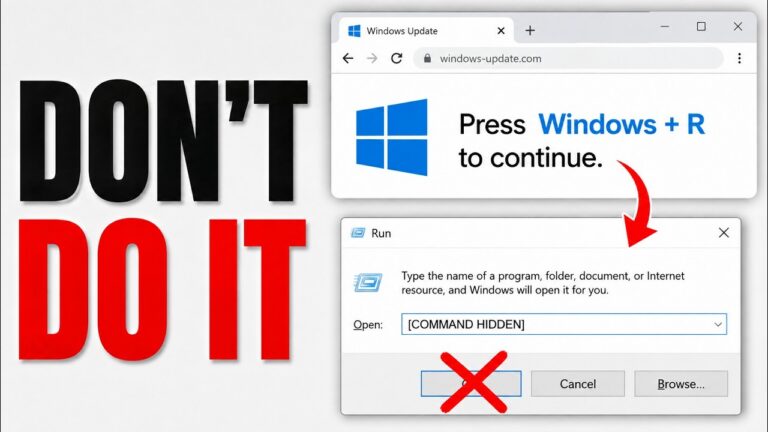
A password manager also cannot protect a computer that is already compromised. Be careful with unexpected downloads and instructions from web pages. My guide to fake browser update scams explains one common way criminals try to steal browser and account information.
2. SimpleLogin: Give Websites an Email Alias
Every time you give a website your main email address, that address becomes another piece of information it holds about you. If it is shared or leaked, changing your password will not stop people from knowing the address.
SimpleLogin lets you create email aliases that forward messages to your existing inbox. You give the website an alias rather than your main address.
For example, you could use one alias for a shopping account and another for a newsletter. The messages still reach you, but you can manage those addresses separately.
How to Set Up Your First Alias
- Create an account through SimpleLogin’s official website.
- Set up and verify the mailbox where forwarded messages should arrive.
- Create an alias in the dashboard, or install the official browser extension using the service’s website links.
- Add a note identifying the website or service where you will use it.
- Use the alias when signing up, and check that its verification email reaches your inbox.
If you use Bitwarden too, save the alias alongside that account’s password. This makes it easier to remember which address you used when signing in later.
What Does the Free Plan Include?
SimpleLogin’s free plan currently provides 10 aliases, forwarding to one mailbox, and the ability to reply from an alias. You do not get unlimited aliases on the free plan. Check its current plan details before relying on a particular feature.
Ten aliases are enough to try the approach with a few accounts. If you later want a separate alias for many more services, you may need to consider the paid plan or another arrangement.
Disable Unwanted Mail Without Losing Account Access
If an alias starts receiving unwanted messages, you can disable it to stop forwarding. That gives you more control than handing out the same main address everywhere.
Before disabling or deleting an alias, check whether you still need it for receipts, verification codes or password resets. If the account matters, change its email address first or keep the alias available for recovery.
An alias helps hide your main address from the website you give it to. It does not make the account anonymous if you also provide your name, payment information or other identifying details. You are also trusting the alias provider to handle forwarded mail.
For another email-alias walkthrough, read my guide to using Brave email aliases and containers.
3. DuckDuckGo: Change Where You Search
Your searches can reveal your interests, worries and plans. Switching search engines is a small change you can make without replacing your whole browser.
DuckDuckGo Search says it does not save a personal search history or build profiles of individual searchers. You can use it for free without creating an account.
It is worth trying for your normal searches and seeing whether the results suit you. You can still use another search engine when you need to.
How to Make DuckDuckGo the Default in Firefox
- Open Firefox’s menu and select Settings.
- Select Search.
- Under Default Search Engine, choose DuckDuckGo.
- Open a new tab and search from the address bar to check the change.
You do not need to remove Google from the list to change the default. If DuckDuckGo is missing, use Mozilla’s instructions for adding a search engine; options can vary by region and browser version.
Other browsers have their own search engine settings. If you use Brave, my Brave privacy settings guide covers search choices alongside its tracker blocking settings.
Private Search Has Limits
Changing your search engine does not erase your browser’s local history. It also does not stop websites you open from recognising you through logins, cookies or other information.
DuckDuckGo’s search engine and its browser are separate choices. Selecting DuckDuckGo Search in Firefox does not install the DuckDuckGo browser or automatically add all of that browser’s protections.
What These Free Privacy Tools Cannot Do
Each tool handles a different part of the problem. Bitwarden helps with passwords, SimpleLogin helps with email addresses and DuckDuckGo changes how your searches are handled.
None of those changes, by itself, hides all your network activity from your internet provider.
There is an important distinction here: HTTPS normally encrypts the contents of a connection, including your search terms when you search DuckDuckGo. Your provider may still be able to see or infer which services you connect to from information such as destination IP addresses and unencrypted DNS requests.
The exact visibility depends on your connection and privacy settings. It is too broad to say a provider can always see every domain, and switching DNS providers alone does not hide all browsing activity.
These tools also do not remove malware, prevent every phishing attempt or make it safe to share sensitive information with an untrusted website.
Which Should You Set Up First?
If you reuse passwords, start with Bitwarden and change those passwords gradually. That addresses a practical account security problem.
Next, try SimpleLogin for a new signup so you can see how aliases work. Finally, make DuckDuckGo your default search engine and use it for your everyday searches.
You do not need a perfect privacy setup before you can make progress. Pick one change, check that it works and build from there.
Final Thoughts
These three tools give you a useful starting point without requiring a paid subscription for the features covered here.
The biggest gains come from using them consistently: unique passwords, sensible use of aliases and a deliberate choice about where your searches go. Keep devices updated and enable extra account protection where it is available.
For more practical privacy and online safety walkthroughs, follow Safe Web Life on YouTube.